Merge ICS Files — Combine Multiple Calendars into One
Drop several .ics files and download one combined calendar — events concatenated as they were written, alarms included. Free, in your browser, nothing uploaded.
Drop several ICS calendar files here
Multiple .ics files — events concatenated as original blocks, merged on your device. Add a few now, append more later. Nothing is uploaded.
100% in your browser — your calendars never leave your device
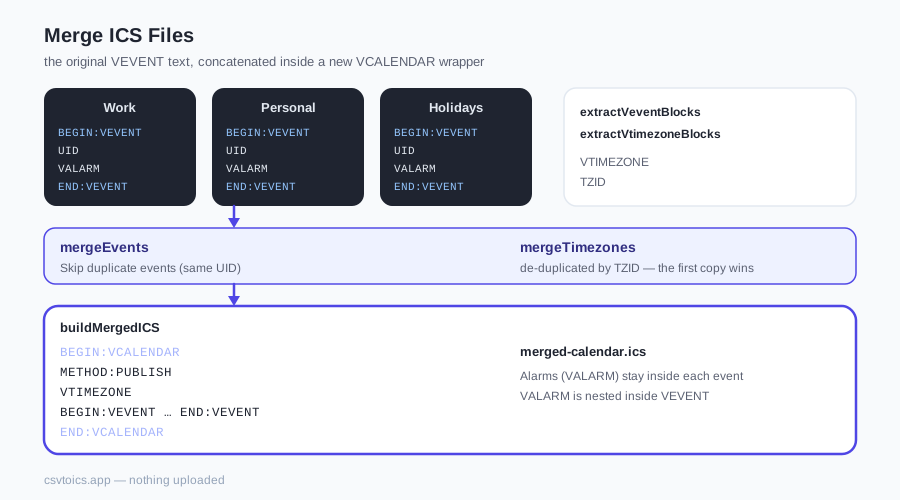
How to merge ICS files — three steps
Merging calendars is not an import. You are not adding anything to Google Calendar, Outlook or Apple Calendar. You are concatenating .ics files so the next import happens once, against one file, instead of against a pile. The events inside are not rewritten. They are copied as original BEGIN:VEVENT blocks into a new calendar wrapper.
1. Choose or drop several files. The picker accepts more than one, and the box accepts a drag of a whole handful of .ics files. Each file is read with the browser File API and split into event blocks and timezone blocks. The list under the box shows the file name and how many events it contributed. Nothing is uploaded; the bytes never leave the tab.
You can come back and add more. New files append; they do not replace what you already dropped. That matters when the files are not in one folder — one unzipped from a Google export, one emailed by a colleague, one you just downloaded from this site's converter. Add the first two, go find the third, drop it. The running total updates. Remove a single file if you grabbed the wrong one. Start over clears the whole list.
2. Read the totals. The tool shows Total N events from K files, and how many of those events are duplicates of an earlier UID. A checkbox labelled Skip duplicate events (same UID) is on by default; uncheck it if you want every event kept, copies and all. The download count on the button updates live.
3. Download the merged .ics. The button label is the count that will actually be in the file. The download is named merged-calendar.ics. Import it the same way you would import any other calendar file — Google Calendar's Settings → Import & export, Outlook's File → Open & Export, Apple Calendar's File → Import. If you want to look before you import, open it in the ICS viewer first. Events appear in the order you loaded the files, and within each file in the order they were already written. Skip-duplicates keeps the first copy.
Where multiple ICS files come from
People do not set out to collect a pile of calendar files. The pile happens, usually across a couple of accounts and a couple of export buttons, and then one day you want a single file you can import once.
Google Calendar's export is the most common factory. Settings → Import & export → Export downloads a .zip. Inside that zip there is one .ics file per calendar — Work, Personal, Holidays, the shared team calendar you were added to last year. Unzip it and you have four or five files, not one. Google does not offer “export everything I can see as a single calendar.” If you want one file, you merge after the unzip. The ICS viewer will open any of those files so you can see which calendar is which before you combine them.
Multiple accounts produce the same shape. A work Google account, a personal iCloud calendar, an Outlook.com mailbox — each export is its own .ics. You are not going to give work the personal file, but you might want both on a new laptop, imported once. Merge the ones that belong together; leave the ones that do not.
This site's own converter is another source. The CSV to ICS converter writes one calendar file per spreadsheet you run through it. A school-term table, a conference schedule, a volunteer rota — three sheets, three downloads. If those events belong in one calendar, merge the three .ics files here instead of importing three times. The same applies to an Excel workbook you converted in two passes, or two Google Sheets you exported on different days.
Team invites pile up too. A meeting .ics in Mail, another forwarded from a colleague, a cancelled-and-replaced update that is its own file. Importing each tap-by-tap is how a duplicate slips in, and it is how a METHOD:REQUEST invite gets accepted on the wrong calendar. Drop the archive here, skip the UID you already have, import once as a published calendar. If you needed to RSVP, that window has passed — see the METHOD note on the tool.
Lossless by design — alarms survive
Most “merge ICS” tools on the web parse every event into an object, then write a new VEVENT from that object. That is convenient for the programmer and destructive for you. The parser they used almost certainly understands SUMMARY, DTSTART, DTEND and maybe LOCATION. It almost certainly does not round-trip VALARM. It drops ATTENDEE lists, ORGANIZER mailboxes, custom X-GOOGLE- / X-MICROSOFT- / X-APPLE- properties, and anything else it did not have a field for. Recurrence exceptions get flattened. Timezone blocks get regenerated, often badly.
This page does not do that. Each file is split with a regular expression that finds BEGIN:VEVENT … END:VEVENT blocks. VALARM is nested inside VEVENT, but its closer is END:VALARM, so a non-greedy match out to END:VEVENT is safe — the alarm text stays inside the event. Every block is stored as the original text. When you download, the blocks you kept are concatenated with CRLF between them, inside a new VCALENDAR wrapper. The bytes inside an event — the reminder, the folded lines, the properties this site's own parser does not even display — leave the way they arrived.
That is the key difference with the ICS editor. The editor is honest about a different job: it lets you change titles, dates and locations, which means it has to rebuild each VEVENT from the fields it keeps. Alarms are not among those fields, so they are dropped on download — the editor says so on the page, in the tool, and in the FAQ. This merger never rebuilds an event, so it never has to drop an alarm. If you came here because the editor ate a reminder, that was the editor doing what it said. Combine the files here instead, then import.
VTIMEZONE blocks are copied the same way, then de-duplicated by TZID. Two Google exports of America/New_York do not need two copies of the daylight-saving rules; the first block is kept. A timezone with no TZID is never dropped, because we do not have a fingerprint we trust. Events are not rewritten to a different zone. 09:00 TZID=Europe/London stays 09:00 Europe/London next to 09:00 TZID=America/New_York from the other file.
The new wrapper is small and deliberate: PRODID names this merger, VERSION:2.0, CALSCALE:GREGORIAN, METHOD:PUBLISH. Original calendar names (X-WR-CALNAME) are not copied, because several files would disagree about the name. Original METHOD lines are not copied either — see the invitation note on the tool. That is the whole rewrite. Everything else is paste. If a merge tool rewrites events, it is not lossless, no matter what the heading says.
What counts as a duplicate
In the calendar world, UID is an event's identity card. RFC 5545 says so, and Google, Outlook and Apple Calendar all treat it that way: import a file whose UID you already have, and the existing event is updated instead of a second copy appearing. Two VEVENTs with the same UID are the same event. The skip-duplicates checkbox uses that fact. The first copy in load order is kept; later copies are counted as duplicates and, with the checkbox on, left out of the download.
Recurring events make one extra rule necessary. A weekly series and a modified instance of that series share a UID. The instance is not a duplicate — it is an exception, and it carries a RECURRENCE-ID naming which occurrence was changed. The exact duplicate key is the UID value, then a |, then the original RECURRENCE-ID line (or an empty string when there is none) — written as UID|RECURRENCE-ID-line. Without that, skipping duplicates would delete every exception and leave you with the master rule only. We do not do that.
Some older or handmade files have no UID at all. For those, the fallback key is the original DTSTART line, then a |, then the original SUMMARY value. Two untitled events at the same instant will match; “Team standup” at 09:00 and “Team standup” at 10:00 will not. If we cannot read both DTSTART and SUMMARY, the event is never treated as a duplicate. We do not have a fingerprint we trust, and deleting it would be guessing.
What this will not catch: the same meeting exported twice with two different UIDs. That happens when someone recreates an event instead of updating it, or when two converters mint a new UID on every run. Those look identical to a person and distinct to a calendar. Catching them would be a judgement call — “Team standup” on Monday at 09:00 might be a duplicate or it might be two standups. This tool does not guess. Uncheck skip-duplicates if you want every block, or open the files in the ICS viewer and decide with your eyes. For table-scale cleanup, convert with the ICS to CSV converter, de-duplicate in a spreadsheet, and convert back — knowing that round-trip will drop alarms, which is why this merger exists as a separate page.
Exact UID skip is for the boring case: you unzipped a Google export twice, or someone mailed you an invite you already had from a previous dump. For that, keeping the original bytes of the first copy is the correct answer. It is not a calendar manager, it is not a fuzzy matcher, and it will not pretend otherwise.
Merge ICS files — frequently asked questions
How do I merge several ICS files into one?
Drop two or more .ics files onto the box above, or pick them with Choose .ics files. Each file is split into original BEGIN:VEVENT blocks and listed with its event count. You can add more files later — they append, they do not replace. Check the total and the same-UID duplicate count, then click Download merged .ics. The file is named merged-calendar.ics.
Does merging change my events?
No. Each event in the download is the original VEVENT text, concatenated inside a new VCALENDAR wrapper. Titles, dates, recurrence rules, attendees, custom X- properties and reminder blocks leave the way they arrived. We do not parse an event into fields and write it back out. The only optional change is leaving out later events that share a UID with an earlier one, and that checkbox is yours to turn off.
Will reminder alarms be lost?
No. VALARM blocks sit inside VEVENT, and because this merger never rewrites the event, the alarm text is still there — trigger, action, description. That is the opposite of the ICS editor on this site, which rebuilds each event from a handful of fields and therefore drops alarms. If you need to change a title, use the editor and expect reminders to go; if you need to combine files, use this page and expect them to stay.
How are duplicate events detected?
The exact duplicate key is UID value + '|' + the original RECURRENCE-ID line (or an empty string when there is none). Two VEVENTs with that same key are the same event, so the later copy is counted as a duplicate. Recurring exceptions share a UID with the master; the RECURRENCE-ID line is what keeps a modified instance from being dropped as a copy of the series. Events with no UID fall back to the original DTSTART line + '|' + the original SUMMARY value. If we cannot read those either, the event is never treated as a duplicate.
Can I merge files that use different timezones?
Yes. Each file's VTIMEZONE blocks are copied through. Identical TZID values are kept once — the first copy wins — so America/New_York from a Google export and America/New_York from an Outlook export do not appear twice. Events keep the TZID they already had. We do not convert 09:00 New York into 14:00 UTC.
What happens if I merge a meeting invitation (METHOD:REQUEST)?
The merged file always writes METHOD:PUBLISH. A REQUEST file is a meeting invite you can Accept or Decline; PUBLISH is a calendar to subscribe to or import. After a merge, that replyable-invite behaviour is gone, even if the original ATTENDEE lines are still inside the event blocks. If you needed to RSVP, do that in the original file, not in the merge.
How do I import the merged calendar into Google, Outlook or Apple Calendar?
Treat merged-calendar.ics as any other calendar file. In Google Calendar on the web: Settings → Import & export → Import. In Outlook: File → Open & Export, or drag the file onto the calendar. In Apple Calendar: File → Import, or double-click the file. Nothing is added to those apps until you import the download yourself. If you want to read the result first, open it in the ICS viewer on this site.
Is the file uploaded to a server?
No. Files are read with the browser File API and joined in JavaScript on your device. There is no upload endpoint. After the page has loaded you can disconnect from the network and the merger still works. The same rule applies to every tool on this site.