How to Get CSV Events into Apple Calendar
Apple Calendar simply doesn't read CSV — no hidden menu, no plugin. The reliable path is CSV → ICS → import, and it takes about a minute. Here's the full walkthrough for Mac, iPhone and iPad.
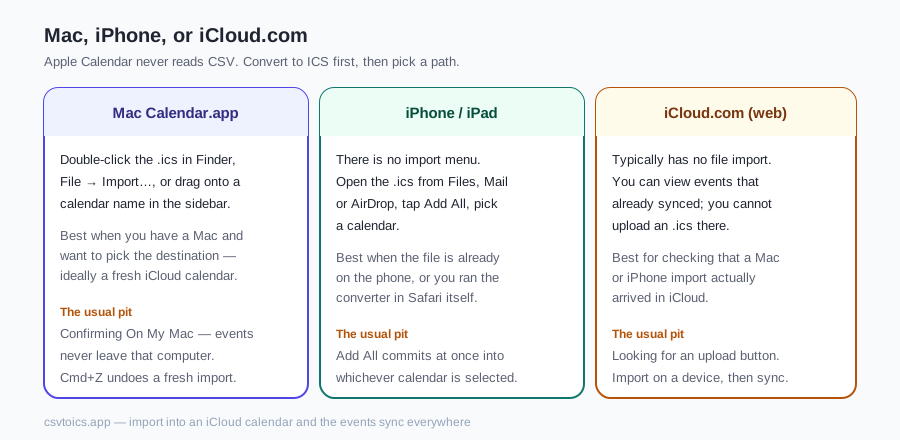
Mac, iPhone, or iCloud.com — which path
Apple Calendar never reads CSV, on any device. After you convert to ICS, two paths actually import; iCloud.com is only for checking that sync carried the events. Menu names below are the usual ones — they can shift with macOS and iOS versions.
| Path | How it works | Best when | The usual pit |
|---|---|---|---|
| Mac Calendar.app | Double-click the .ics in Finder, choose File → Import…, or drag the file onto a calendar name in the sidebar. Confirm the destination calendar when asked. | You have a Mac and want to pick the destination — ideally a fresh iCloud calendar — before a batch lands. | Confirming the first calendar in the list. If it sits under On My Mac, the events never leave that computer. |
| iPhone / iPad | There is no import menu. Open the .ics from Files, Mail or AirDrop, tap Add All, pick a calendar. | The file is already on the phone, or you ran the converter in Safari on the device itself. | Add All commits at once into whichever calendar is selected — often the default, not the iCloud one you meant. |
| iCloud.com (web) | iCloud.com's calendar typically has no file import. You can view events that already synced; you cannot upload an .ics there. | Checking that a Mac or iPhone import actually arrived in iCloud. | Looking for an upload button. Import on a device, then let iCloud carry the events. |
Step 1 — Convert the CSV to ICS
Open the CSV to ICS converter on our homepage and drop in your spreadsheet. Exports from Numbers, Excel and Google Sheets all work — save/export as .csv first.
Check the auto-detected column mapping and pick the timezone your times were written in (it defaults to your device's zone).
Preview the event cards, then download the .ics. The conversion runs entirely in your browser — the file is never uploaded.
Recurring events / saved mapping: Pro $7 — a Repeat column becomes a real RRULE, and your column mapping is saved for the next file. One-time, no subscription, still 100% in your browser.
Get Pro — $7 →Step 2 (Mac) — Import the ICS into Calendar
Optional but smart: create a fresh calendar first (File → New Calendar) so a bad import is a one-click delete instead of an event hunt.
Double-click the downloaded .ics in Finder — Calendar opens and asks which calendar to add the events to. (Equivalent: Calendar → File → Import…, or drag the file onto a calendar name in the sidebar.)
Pick the destination calendar and confirm. All events land at once; if it's an iCloud calendar they sync to your other devices within moments.
Step 2 (iPhone / iPad) — open the file
Get the .ics onto the device: run the converter in Safari on the iPhone itself (it works there — downloads land in Files), or AirDrop / email the file from your computer.
Tap the .ics in the Files app (or tap the attachment in Mail).
Tap 'Add All', choose which calendar receives the events, and you're done. Choosing an iCloud calendar syncs them everywhere.
Want to sanity-check the file before it touches your calendar? Open it in the ICS viewer first. iCloud.com cannot import the file — that path is in the table above.
After import — iCloud to every device
Once events sit in an iCloud calendar they show up on every device signed into the same Apple ID: other Macs, iPhone, iPad, and iCloud.com. That is iCloud doing its job, not a second import.
The destination calendar is the whole story. On a Mac, the sidebar groups calendars by account. Import into one listed under the iCloud heading and the events propagate. Import into On My Macand they stay on that machine — your iPhone will look empty and nothing is wrong with the file. Calendars that belong to Exchange, Google or another account follow that account's own sync, not iCloud.
Propagation is usually seconds to a few minutes. If a phone still shows nothing, check three things before you import again: the batch went into an iCloud calendar, Calendar is turned on for iCloud on that phone, and you are looking at the same calendar (the iPhone view can hide some of them). Re-importing while you wait is how duplicates start.
Three pits that look like converter bugs
- Wrong default calendar.On a Mac the import dialog asks which calendar — pick deliberately. On iPhone, Add All uses the currently selected or default calendar, and it is easy to miss. Events that "vanish" after a successful import almost always landed in On My Mac, a subscribed holidays calendar, or a shared calendar you do not have open. Create a new iCloud calendar first so a bad batch is one delete.
- Times shifted by a whole number of hours.The spreadsheet's times were written in one timezone and converted in another. The converter on this site defaults to your browser's zone and writes a VTIMEZONE block with daylight-saving rules, which Apple Calendar honors. Re-convert with the zone the times were actually written in — not the zone you live in now, if those differ. All-day events have no time of day and should not shift; if they do, the rows were saved as timed events with midnight times.
- Importing twice makes copies. Apple Calendar typically adds a new copy of every event on a second import of the same file. The converter writes a unique UID per event — the identifier Google and Outlook often use to update in place — but Apple Calendar usually still treats the second import as new events. Import once. If you need a redo, delete the first batch (or the throwaway calendar) before you import again.
CSV to Apple Calendar — FAQ
Can Apple Calendar import a CSV file?
No — on Mac, iPhone and iPad alike, Apple Calendar has no CSV import whatsoever. It only understands the iCalendar (.ics) format. The working route is: convert the CSV to ICS (our free browser converter does it without uploading your file), then import the .ics.
How do I import an ICS file into Calendar on a Mac?
Three equivalent ways: double-click the .ics file in Finder and pick a destination calendar; or in Calendar choose File → Import…, select the file and confirm; or drag the .ics onto a specific calendar's name in the sidebar. Multi-event files import in one go either way.
How do I add ICS events to my iPhone or iPad calendar?
There's no import menu on iOS, but opening the file works: save the .ics to the Files app (or receive it by AirDrop/email), tap it, and tap 'Add All' to choose a calendar. From Mail, tap the .ics attachment and choose Add All. Once added to an iCloud calendar, events sync to all your devices.
Events imported into Apple Calendar show the wrong time — why?
The ICS was probably written in UTC or a wrong timezone. Convert again and select the timezone the spreadsheet's times were actually written in — our converter defaults to your browser's zone and embeds full daylight-saving rules, which Apple Calendar honors even with its own 'Time Zone Override' setting off.
Can I undo an import into Apple Calendar?
Immediately after importing on the Mac, Edit → Undo (Cmd+Z) usually removes the just-added events. After that window closes there's no bulk undo, so the safest pattern is importing into a brand-new calendar first — if anything looks off, delete that calendar and you're back to clean.
Will the imported events sync through iCloud?
Yes — import into any calendar that lives in your iCloud account (on Mac, check the calendar appears under the iCloud heading in the sidebar) and the events propagate to your iPhone, iPad and iCloud.com automatically. Import into an 'On My Mac' calendar and they stay local to that machine.