How to Import a CSV into Google Calendar
Google Calendar can swallow a CSV directly — if the file follows its rules. Here are both working routes: the built-in import with its exact requirements, and the convert-to-ICS route that avoids its sharp edges.
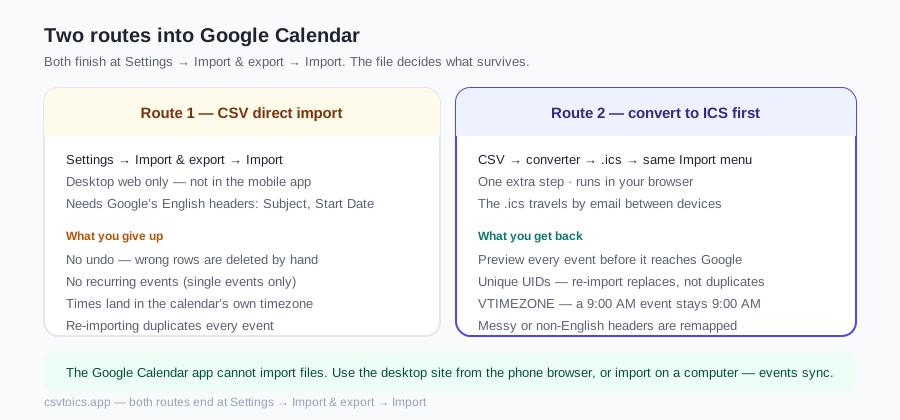
The two routes at a glance
Both routes finish at the same screen inside Google Calendar. The difference is entirely in what the file itself is able to carry — a CSV row is just text in columns, while an ICS event carries its own timezone, recurrence rule and unique ID.
Google Calendar's CSV column reference
These are the only headers Google recognises, spelled exactly this way, in English. Any other column is ignored — which is why an export from another calendar app usually needs renaming before Google will touch it.
| Header | Required | Format / example |
|---|---|---|
| Subject | Yes | Free text — Team standup |
| Start Date | Yes | MM/DD/YYYY — 05/30/2026 |
| Start Time | No | 12-hour with AM/PM — 10:00 AM |
| End Date | No | MM/DD/YYYY — defaults to Start Date |
| End Time | No | 12-hour with AM/PM — 1:00 PM |
| All Day Event | No | True or False |
| Description | No | Free text — wrap in quotes if it contains commas |
| Location | No | Free text — wrap in quotes if it contains commas |
| Private | No | True or False |
Two details trip people up more than any other. Dates must be US month-first order, so a European sheet full of 30/05/2026 will either fail or, worse, silently import 05/30 as a different day where both halves are under 12. And times must be 12-hour with AM/PM — a 24-hour 14:00 is not understood. Our converter has no date-order switch: ambiguous numeric dates such as 03/04/2026 are read month-first unless the first number exceeds 12. Prefer ISO dates (2026-05-30) — they are never ambiguous.
Route A — Google's built-in CSV import
Format the file first. The header row must use Google's English column names — Subject and Start Date are required; Start Time, End Date, End Time, All Day Event, Description, Location and Private are optional. Our sample.csv on the homepage is already in this exact shape.
Open Google Calendar in a desktop browser (calendar.google.com). Import is not available in the iOS/Android app.
As of 2026 — menu names move: click the gear icon → Settings → Import & export (left sidebar) → Import.
Click 'Select file from your computer' and choose your CSV.
Pick the destination calendar in the 'Add to calendar' dropdown. Consider creating a fresh calendar first — if the import goes wrong you can delete the whole calendar instead of hundreds of events.
Click Import. Google reports how many events were added; they appear immediately.
Know the limits before you click Import: no undo, no recurring events, no per-event timezone (everything lands in the destination calendar's zone), and re-importing the same file duplicates every event.
Route B — convert to ICS first (safer)
This is also the answer to “how do I convert a CSV file to an iCal file” — iCal and ICS are the same format, and the CSV to iCal converter covers the naming question in full.
Convert your CSV with our CSV to ICS converter. It accepts messy headers and mixed date formats, lets you pick the correct timezone, and previews every event before you download — all in your browser.
Download the .ics file it generates.
As of 2026 — menu names move: in Google Calendar on the web, gear icon → Settings → Import & export → Import → select the .ics file → choose the destination calendar → Import.
Why bother with the extra step? The ICS carries a proper timezone definition (so a 9:00 AM event stays 9:00 AM), you catch bad rows in the preview instead of in your calendar, and each event gets a unique ID — importing the same ICS twice doesn't double your events the way CSV does. Start on the converter homepage.
Importing from a phone — Android or iPhone
Short version: the Google Calendar app cannot import files at all— not CSV, not ICS. There is no import screen in the Android or iOS app, so “how do I import a CSV to Google Calendar on my phone” has two honest answers:
- Use the desktop site from your phone's browser. Open calendar.google.com in Chrome or Safari, switch the browser to “Desktop site” (Chrome: ⋮ menu → Desktop site; Safari: aA → Request Desktop Website), then follow Route A above — the import screen appears exactly as on a computer. Fiddly on a small screen, but it works.
- Do the import on any computer once — the events sync to the app on your phone automatically. This is the route we recommend if a computer is within reach.
Either way, converting the CSV to ICS here first (Route B) gives you the preview and timezone safety before you commit — and the .ics travels fine by email if you need to move it between devices.
When the import fails — error by error
Google's import errors are famously terse. Here is what each one usually means in practice, and the fastest fix.
| What you see | Most likely cause | Fix |
|---|---|---|
| Could not upload your events | A header Google doesn't recognise, or a row missing Subject or Start Date | Rename headers to the exact names above; delete or fill blank rows |
| 0 events imported, no error | The file saved as something other than CSV — .xlsx or tab-separated | Re-export as comma-separated CSV, or drop the original into our converter |
| Events land on the wrong day | DD/MM dates being read as MM/DD | Rewrite dates as MM/DD/YYYY, or convert to ICS where the order is unambiguous |
| Every event shows as all-day | Start Time missing or in 24-hour format | Use 10:00 AM style times in both Start Time and End Time |
| Accented text imports as mojibake | The file is not UTF-8 — usually a Windows Excel export | Save as 'CSV UTF-8' in Excel; our converter reads and re-emits UTF-8 either way |
| Everything imported twice | The same CSV was imported more than once | There is no dedupe for CSV — delete and re-import from an ICS, which carries UIDs |
If you hit two or more of these on the same file, stop patching the CSV and take Route B. Fixing headers, date order and encoding by hand in a spreadsheet takes longer than one pass through a converter that shows you the parsed result before anything is committed — especially given that the import you are about to run cannot be undone.
Google's CSV import cannot make a series, and the free converter cannot either: each row stays one event, Repeat column included. Pro writes a Repeat cell (and Repeat Until or Repeat Count when filled) into an RRULE in the ICS you import (Route B), instead of adding that line by hand or rebuilding the series in Google after the first occurrence.
Recurring events / saved mapping: Pro $7 — a Repeat column becomes a real RRULE, and your column mapping is saved for the next file. One-time, no subscription, still 100% in your browser.
Get Pro — $7 →CSV to Google Calendar — FAQ
Can Google Calendar import a CSV file directly?
Yes — it's one of the few calendar apps that can. As of 2026 — menu names move: on the web, open Settings → Import & export → Import, select the CSV, pick a destination calendar and click Import. The file needs English headers (Subject, Start Date, etc.) and Subject + Start Date are mandatory. The Google Calendar mobile app cannot import files at all — this is desktop-web only.
Why does Google Calendar say 'Could not upload your events' for my CSV?
Usually one of four things: non-English column headers (translate them to Subject, Start Date, …), a missing Subject or Start Date on some row, ambiguous or malformed dates, or the wrong file encoding. Converting the CSV to ICS with our converter sidesteps all four, because you get to preview and fix events before anything reaches Google.
Can I undo a Google Calendar import?
No — there is no bulk undo. Every imported event has to be deleted by hand if the import goes wrong, which is the single best argument for previewing first. Importing the same file twice also duplicates every CSV event, since CSV rows carry no unique IDs for Google to deduplicate on.
Does Google Calendar's CSV import support recurring events?
No. CSV import creates single events only. To import repeating events, convert to ICS and add RRULE lines (see our guide to creating ICS files), or recreate the recurrence in Google Calendar after importing the first occurrence.
What timezone does Google use for imported CSV events?
The destination calendar's timezone — CSV rows can't specify their own. If your spreadsheet times were written for a different zone, every event shifts. The ICS route fixes this: our converter embeds the timezone (with DST rules) in the file, and Google respects it regardless of your calendar's setting.
How do I upload a CSV file to my Google Calendar?
Upload happens inside the import flow. As of 2026 — menu names move: on desktop web, gear icon → Settings → Import & export → Import → 'Select file from your computer', choose the CSV, pick a destination calendar and click Import. There is no drag-and-drop upload and no way to upload from the mobile app — desktop web is the only door.
Why won't Google Calendar import an ICS file?
Almost always a malformed file: missing VCALENDAR wrapper, events without the required DTSTART/UID fields, broken line endings, or an ICS produced by a buggy exporter. Run the file through our ICS validator to see the exact errors, fix them (or regenerate the file with the converter here), and re-import. Files our converter produces follow RFC 5545 and import cleanly.
Should I import CSV directly or convert to ICS first?
Direct CSV is fine for a simple, clean, already-Google-formatted file landing in a calendar whose timezone matches. Convert to ICS first when headers are non-standard, dates are in mixed formats, timezones matter, or you want a preview before committing — the import itself can't be undone.