ICS Viewer — See What's Inside Before You Import
Got an .ics attachment or a calendar export and want to know what's in it before letting it into your calendar? Drop it below and read every event, grouped by date. 100% in your browser — the file is never uploaded.
When a viewer beats an import
- Suspicious invites: check an unexpected invite.ics from an email without adding anything to your calendar.
- Pre-migration audits: confirm an export actually contains all your events (and how many) before importing it into a new account.
- Quick reads: a conference agenda or class schedule distributed as .ics is readable here in two clicks.
- Debugging: generating ICS files from the CSV to ICS converter or by hand? Drop them here to verify dates, times and timezones look right.
What is an ICS file, and what does the viewer read from it?
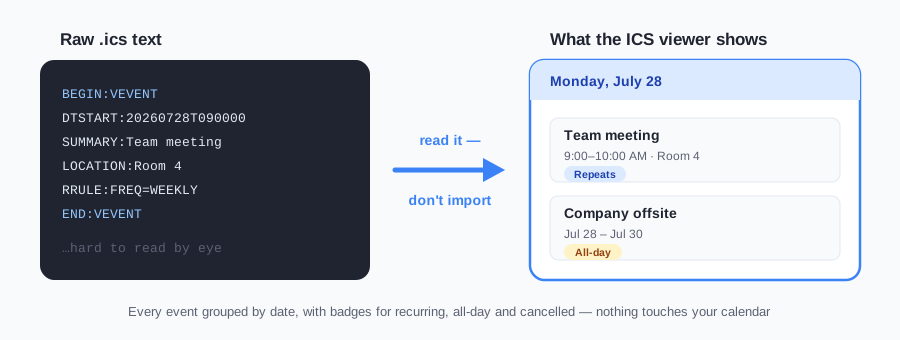
An .ics file is plain text in the iCalendar format (RFC 5545) — the exchange format every major calendar speaks. Inside, each event is a VEVENT block made of labeled lines, and the ICS viewer translates each of them into something readable:
DTSTART / DTEND— when the event begins and ends. Date-only values become the All-day badge; date-times keep their clock time.SUMMARY— the event title, shown as the card heading.LOCATIONandDESCRIPTION— where it happens and any notes the organizer attached.RRULE— the recurrence rule behind the Repeats badge. Recurring events are shown once with their rule; the viewer does not expand the series into individual occurrences.ORGANIZER— who sent the invitation, useful when triaging an unfamiliar invite. ATTENDEE lines are not parsed, and attendees are not displayed.STATUS— the Cancelled badge keys only on STATUS:CANCELLED. METHOD is not read.
None of this requires a calendar app — which is the point. The format was designed to be portable, and a viewer is the fastest honest way to see what a portable file actually carries.
Why won't my ICS file open? Common causes
- It's actually a zip: Google Calendar exports arrive zipped, with one .ics per calendar inside. Unzip first, then drop the .ics into the ICS viewer.
- The extension lies: a file renamed to .ics that isn't iCalendar text (an .eml email, a CSV, a PDF) has nothing for a parser to find. The viewer will tell you rather than render nonsense.
- Truncated downloads: a file cut off mid-transfer can lose its closing
END:VCALENDARline. The viewer still recovers the events it can and lists what looked broken in the warnings box. - Odd encodings: files written by older tools sometimes carry unusual characters. If names or locations look garbled here, they would have looked garbled after import too — better to know first.
Need the events as a spreadsheet instead?
The viewer is for reading. If you want the events as data — to sort, count or bulk-edit — use the ICS to CSV converter, which turns the same file into a spreadsheet with one row per event.
How to open an ICS file without importing it
Drop the .ics on the viewer above. Events group by date; recurrence and cancelled badges stay visible. Nothing is written to Google Calendar, Outlook or Apple Calendar. If the file is a zip from Google, unzip it first. To turn the same events into a spreadsheet, use ICS to CSV. The format itself is explained in what is an ICS file.
ICS viewer — frequently asked questions
How do I open an ICS file without importing it into my calendar?
Drop the .ics file into the viewer on this page. It lists every event grouped by date — with times, locations, descriptions, organizers and recurring badges — without touching your calendar. Nothing is imported and nothing is uploaded; the file is parsed entirely in your browser.
Why would I view an ICS file instead of just importing it?
Because import is hard to undo. An invite.ics attachment might contain one meeting or three hundred duplicated events — the viewer lets you check what's inside first. It's also handy for inspecting calendar exports before migrating, or reading an invitation on a machine without a calendar app.
What does the viewer show for each event?
Start time (or an All-day badge), end time, multi-day spans, title, location, description, organizer, a Repeats badge for recurring events and a Cancelled badge when STATUS is CANCELLED (METHOD is not read). Recurring events are shown once with their rule, not expanded. Attendees are not displayed. Events are grouped under date headings and sorted chronologically, with all-day events listed first.
What timezone are the times shown in?
Events stored with a named timezone keep their original wall-clock time. Events stored as UTC are converted to your browser's local timezone, which is displayed at the top of the results so there's no ambiguity.
Can the viewer handle invitation files from Outlook and Google?
Yes. The parser tolerates the quirks of real-world files: folded long lines, LF-only line endings, VALARM reminder blocks, missing end times and vendor-specific X- properties. If something in the file is genuinely unreadable, the viewer says so in a warnings box instead of failing silently.
Does this ICS viewer work on iPhone and Android?
Yes — it runs entirely in the browser, so any phone browser that can receive the file can open it here. That's especially useful on iPhone, where tapping an .ics attachment normally pushes you straight toward adding it to your calendar; opening it in the viewer first lets you read it without committing.
Is it safe to open an ICS file from an unknown sender?
Reading one here is the cautious option: the viewer only parses text and displays it — it never executes anything, imports anything or contacts a server with your file. The real risk with unknown invites is importing them (calendar spam that's tedious to remove) or following links inside the event description. The viewer lets you see those links before deciding anything.
My calendar export is a .zip — can I view it?
Almost. Google Calendar's export (Settings → Import & export → Export) downloads a .zip that contains one .ics file per calendar. Unzip it first, then drop any of the .ics files into the viewer. The viewer reads .ics files directly; it doesn't unpack zip archives itself.