How to Import a CSV into Outlook Calendar
Outlook is really three different apps, and only one of them still reads CSV. Here's the classic-Outlook wizard start to finish, and the ICS route that new Outlook, Outlook.com and Outlook for Mac require.
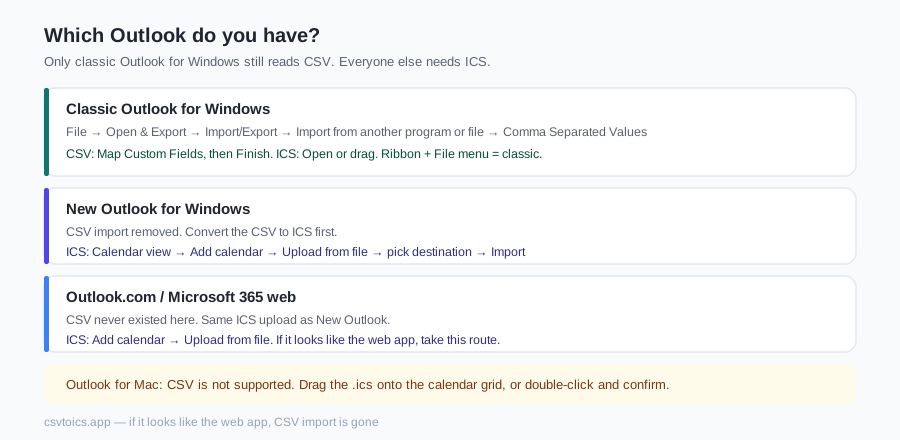
Which Outlook do you have?
| Outlook version | CSV import | ICS import |
|---|---|---|
| Classic Outlook for Windows | ✅ Import/Export wizard | ✅ Open or drag |
| New Outlook for Windows | ❌ Removed | ✅ Add calendar → Upload from file |
| Outlook.com / Microsoft 365 web | ❌ Never had it | ✅ Add calendar → Upload from file |
| Outlook for Mac | ❌ Not supported | ✅ Drag .ics onto calendar |
Rule of thumb: if your Outlook has the ribbon and a File menu, it's classic. If it looks like the web app, CSV import is gone and you'll take the ICS route below.
Import CSV to Outlook Calendar — classic wizard
As of 2026: File → Open & Export → Import/Export.
Choose 'Import from another program or file' → Next → 'Comma Separated Values' → Next.
Browse to your CSV. Pick a duplicates option — 'Do not import duplicate items' is the sane default.
Select the destination: choose your Calendar folder (not Inbox — the wizard defaults oddly sometimes) → Next.
Click 'Map Custom Fields…'. Drag columns from the left (your CSV) onto Outlook's appointment fields on the right: Subject → Subject, Start Date → Start Date, Start Time → Start Time, End Date/Time likewise, Location → Location, Description → Notes. Click OK.
Click Finish. Outlook creates the appointments in the selected calendar immediately.
Gotchas: dates must be in your Windows regional format or the wizard silently misreads them; times are interpreted in the system timezone; recurring events can't be expressed; and there is no undo, so import into a new calendar folder first if unsure.
New Outlook, Outlook.com & Mac — the ICS route
Convert the CSV to ICS with our converter — drag the file in, check the auto-mapped columns, pick the timezone the times were written in, preview, download.
As of 2026, Windows (new Outlook) and web: switch to Calendar view → Add calendar (left panel) → Upload from file → Browse to the .ics → choose which calendar receives the events → Import.
As of 2026, Outlook for Mac: drag the .ics file onto the calendar grid, or double-click it and confirm — events land in the calendar you have selected.
The ICS route also fixes the classic wizard's weak spots: explicit timezone handling, no field-mapping dialog to get wrong, and unique event IDs so a re-import doesn't duplicate everything. Start at the CSV to ICS converter.
When the import fails
The menu clicks for each Outlook are above; this section is for the cases where those clicks produce nothing, the wrong times, or an error. The first fork is whether you tried to feed Outlook a CSV or an ICS.
Direct CSV import and convert-to-ICS-first are not interchangeable. Classic Outlook for Windows is the only Outlook that still reads a CSV — and even there it interprets dates in your Windows regional format, times in the Windows system timezone, and every column only after you map it. Blank or misdated appointments almost always mean the wizard did not understand a column, not that the file was empty. New Outlook, Outlook on the web and Outlook for Mac do not import CSV at all. If the file picker refuses a .csv, greys it out, or the import silently does nothing, you are on one of those apps: convert to ICS first, which is the format they accept. An ICS from this site also carries an explicit timezone (with DST rules) and a unique UID per event, so you skip the mapping dialog and — on most Outlook versions — a re-import of the same file updates rather than duplicates. CSV rows have no UID; a second CSV import duplicates everything.
| What you see | Most likely cause | Fix |
|---|---|---|
| File picker refuses the CSV, or nothing happens | You are on New Outlook, the web app, or Outlook for Mac — none of those read CSV | Convert to ICS on our homepage, then import the .ics |
| Appointments exist but title, date or time is blank | Classic wizard: a column was not mapped, or dates are not in the Windows regional format | Run Map Custom Fields again; or skip the wizard and convert to ICS |
| Every event is shifted by a whole number of hours | CSV import used the Windows system timezone; the spreadsheet was written in another | Convert to ICS and pick the timezone the times were actually written in |
| Cannot import / permission error / Import stays disabled | A work or school Microsoft 365 mailbox, or a shared/delegated calendar you can read but not write | Import into a calendar you own. Company accounts can block calendar creation; personal outlook.com accounts usually do not |
| "Cannot import this file" on an .ics | The file is not iCalendar — a CSV renamed, or an HTML page saved with a .ics extension | Open it in a text editor: it should start with BEGIN:VCALENDAR. Or drop it in the ICS viewer |
One more honest gap: the converter writes one event per spreadsheet row and does not emit RRULE. A weekly standup in the CSV arrives as a single meeting, not a series. Duplicate the row per date, or add a recurrence rule by hand after download — the syntax is on How to create an ICS file.
CSV to Outlook — FAQ
Can Outlook import a CSV calendar file?
Only classic Outlook for Windows can, as of 2026 via File → Open & Export → Import/Export → 'Import from another program or file' → Comma Separated Values, with a manual field-mapping step. New Outlook for Windows, Outlook on the web (outlook.com / Microsoft 365) and Outlook for Mac dropped CSV import entirely — for those you must convert the CSV to an ICS file first.
How do I import calendar events into the new Outlook or Outlook.com?
Convert your CSV to ICS (the converter on our homepage does this in the browser), then as of 2026 in Outlook's calendar view choose Add calendar → Upload from file, select the .ics, pick the destination calendar and Import. This is the only file-import path the new Outlook supports.
Why are my imported Outlook events at the wrong time?
Classic Outlook's CSV import interprets times in your Windows system timezone, with no way to override it per file. If the spreadsheet's times were meant for a different zone, everything shifts. Converting to ICS first fixes it — the file embeds an explicit timezone with DST rules, which every Outlook version honors.
What is 'map custom fields' in the classic Outlook import wizard?
It's the step where you tell Outlook which CSV column feeds which appointment field: drag Subject to Subject, Start Date to Start Date, and so on. If the Import button produces empty or misdated appointments, an unmapped or mismapped field in this dialog is almost always the cause.
Can I undo an Outlook calendar import?
There's no undo button in any Outlook version. In classic Outlook, sort the calendar list view by Created date to find and bulk-delete just-imported items. The safer plan is importing into a brand-new calendar first, checking the result, then moving events if all is well.
Does the ICS from this site work with Microsoft 365 accounts?
Yes. The converter writes standards-compliant RFC 5545 with CRLF line endings, VTIMEZONE definitions and unique UIDs — the format Exchange Online, Outlook.com and every desktop Outlook expect. UIDs also mean re-importing the same file updates rather than duplicates events on most Outlook versions.