Excel to ICS Converter — No CSV Export Step Needed
Turn an Excel sheet of events into a .ics calendar file right here in the browser. Drop the .xlsx or .xls straight in — no saving as CSV first, no upload, no copy of your schedule on someone else's server. Map the columns, preview the first five events (click Show all for the rest), download one file that imports into Google Calendar, Outlook or Apple Calendar.
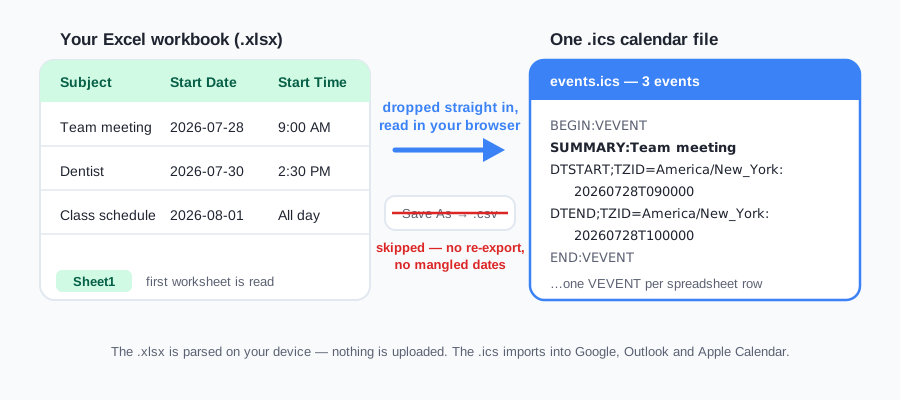
Why skip the Save-As-CSV step?
The traditional route — export the sheet as CSV, then feed the CSV to a converter — is exactly where calendar imports go wrong, because the export step quietly rewrites your data. Excel formats dates in the CSV according to your system locale, so 28/07/2026 on a UK machine becomes a string a month-first parser misreads or rejects. Times can flip between 12-hour and 24-hour conventions. And a CSV saved with the wrong encoding turns every accented name in your event titles into mojibake.
Reading the .xlsx directly sidesteps all of it: the converter sees the worksheet as Excel displays it, one header row and one event per row, and shows you a preview before anything is downloaded. The parsing happens with SheetJS in your browser tab — open the network panel while converting and you'll see zero requests carrying your data.
The reverse direction works too: the ICS to CSV tool turns any calendar file back into a spreadsheet you can open in Excel.
Which columns the converter looks for
Headers are matched automatically — these names (and close variants) are recognized on sight, and anything the auto-detect misses you can assign by hand in step 1. Only Subject and Start Date are required.
| Spreadsheet column | Required | Becomes in the .ics |
|---|---|---|
| Subject / Title | Yes | SUMMARY — the event name |
| Start Date | Yes | DTSTART — with your chosen timezone |
| Start Time | No | Time part of DTSTART; blank can mean all-day |
| End Date + End Time | No | DTEND — defaults to one hour after the start |
| All Day | No | Switches the event to a date-only DTSTART |
| Location | No | LOCATION |
| Description | No | DESCRIPTION — notes shown in the event |
From .xlsx to calendar in five steps
- Drop the Excel file into the converter above — .xlsx or .xls, first worksheet, one header row on top.
- Check the column mapping. Recognized headers are pre-assigned; fix anything that looks wrong with the dropdowns.
- Pick the timezone your event times were written in. The .ics embeds it with DST rules, so events land at the right hour everywhere.
- Read the preview. The preview shows the first five; click Show all. Each listed event shows its parsed date and time — this is where a day-first date or a typo shows itself before it reaches your calendar.
- Download the .ics and import it: see the exact menu clicks for Google Calendar, Outlook or Apple Calendar.
Free conversion writes one event per row: Repeat, Repeat Until and Repeat Count are not emitted as an RRULE, and a column mapping you fix by hand is not stored. Pro turns a Repeat cell into the rule — weekly, monthly, weekdays, or a FREQ= value, with Repeat Until or Repeat Count when those cells are filled — and saves the mapping so the same header row applies the next time that layout is loaded.
Recurring events + saved templates — a Repeat column (weekly, monthly, weekdays…) becomes a real RRULE in your .ics, and your column mapping is saved for one-click re-use. $7 one-time, no subscription — still 100% in your browser.
How to convert Excel to ICS
Drop the .xlsx on the converter above — first sheet, header row on top. Map Subject and Start Date if the auto-detect misses them, pick the timezone the times were written in, preview five events, then download the .ics. Import it into Google Calendar, Outlook or Apple Calendar. Nothing is uploaded. A CSV export of the same sheet can go through the CSV to ICS converter instead.
Excel to ICS — FAQ
Do I need to save my Excel file as CSV first?
No. Drop the .xlsx or .xls file straight into the converter — it reads the first worksheet directly in your browser. Skipping the Save-As-CSV step also skips the bugs that step introduces: dates silently rewritten to your locale's order, times reformatted, and accented characters mangled by the wrong encoding.
Is my spreadsheet uploaded to a server?
No. The workbook is parsed with JavaScript on your own device — there is no upload endpoint at all. You can load this page, go offline, and still convert. The .ics file is assembled and saved locally too.
Which Excel formats are supported?
Modern .xlsx workbooks and legacy .xls files both work, alongside .csv, .tsv and .txt in the same drop zone. Only the first worksheet is read, so put your event table on sheet 1 with a single header row. One file can be up to 10 MB, 50,000 rows, 200 columns and 1,000,000 cells — limits that keep a malformed workbook from freezing the tab.
How should dates be written in the spreadsheet?
The converter reads what Excel displays and understands ISO (2026-07-28), numeric dates like 7/28/2026, and written-out months like 'July 28, 2026' or '28 July 2026'. Ambiguous numeric dates such as 05/06/2026 are read month-first (May 6) unless the first number is over 12 — so if your sheet is day-first, the preview is where you catch it. ISO or a written-out month is never ambiguous.
Do times need AM/PM?
No — both conventions work. 9:00 AM, 14:30, 9am and even 'noon' are all understood. Times are combined with the timezone you pick in the options, and the .ics carries that timezone with proper DST rules.
Can rows become recurring events?
In the free converter, no — each row becomes one event, and Repeat, Repeat Until and Repeat Count are not turned into a rule. With Pro, yes: a Repeat cell (daily, weekly, weekdays, monthly, yearly, or a FREQ= rule) becomes an RRULE, with Repeat Until or Repeat Count applied when those cells are filled.
My workbook has several sheets — which one is used?
Only the first worksheet. Move your event table to sheet 1 (or copy it into a fresh workbook) before converting. Title rows above the real headers should be deleted too, so row 1 is the header row.
Does this work with Google Sheets?
Yes — either way. File → Download → Microsoft Excel (.xlsx) and drop that file here, or download as .csv; both land in the same converter. The .xlsx route preserves the sheet exactly as displayed.