ICS File Not Importing? Find the Cause in Two Minutes
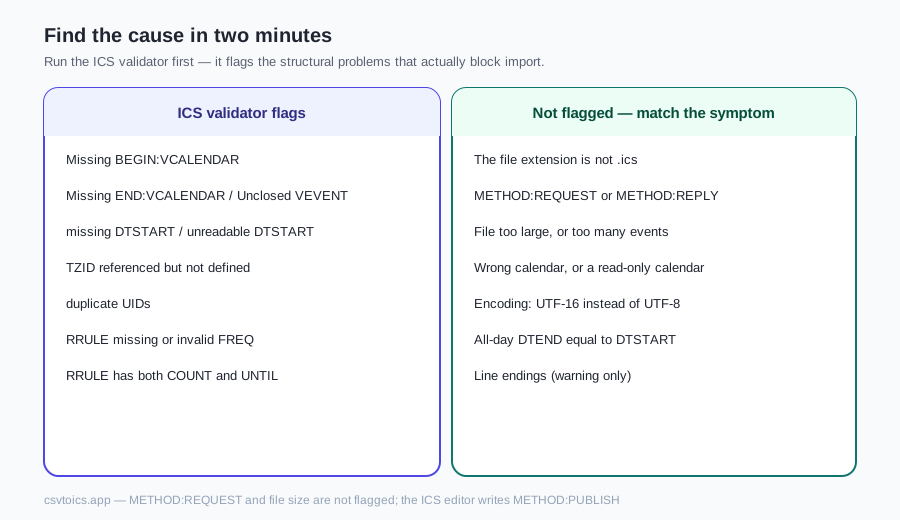
Google, Outlook and Apple Calendar rarely name the broken line. Run the file through the ICS validator first — it flags the structural problems that actually block import — then match the remaining symptom below.
1. The file extension is not .ics
Symptom: double-click does nothing, or the app refuses the file, even though the text looks like a calendar.
Why: importers key off .ics. A download renamed .ical, .txt or .vcs is often ignored. .vcs is vCalendar 1.0 — a different format (VERSION:1.0). iCalendar 2.0 is VERSION:2.0 inside a VCALENDAR.
Fix: if the first lines are BEGIN:VCALENDAR and VERSION:2.0, rename to .ics. If it is vCalendar 1.0, re-export as iCalendar or rebuild from a spreadsheet with the CSV to ICS converter.
2. No VCALENDAR wrapper — or a truncated file
Symptom:the validator reports "Missing BEGIN:VCALENDAR", "Missing END:VCALENDAR" or "Unclosed VEVENT block". Import fails in every app.
Why: every ICS file is a VCALENDAR envelope. A truncated download or a fragment that starts at BEGIN:VEVENT will not import. Missing VERSION is an error; a value other than 2.0 is a warning. An unclosed VEVENT means the file was cut off mid-event.
Fix: re-export from the original calendar, or wrap the fragment: BEGIN:VCALENDAR / VERSION:2.0 / events / END:VCALENDAR. The ICS editor rewrites a complete envelope (VERSION:2.0, METHOD:PUBLISH) if it can parse at least one VEVENT.
3. DTSTART is missing or malformed
Symptom:the validator says "missing DTSTART" or "unreadable DTSTART". Events vanish, or import is rejected.
Why: every VEVENT must have DTSTART. The lint accepts DATE as YYYYMMDD and DATE-TIME as YYYYMMDDTHHmmss with optional Z. It rejects impossible dates (20260230), a missing T, and hyphen/colon separators (2026-02-28T09:00:00 is not legal ICS). DTEND before DTSTART is a separate error.
Fix: set a real start date in the ICS editor, or rebuild with the converter, which writes legal DTSTART values.
4. Timezone: unknown TZID or Windows zone names
Symptom: events land at the wrong time, or the validator warns that a TZID is referenced but not defined. Conflicting VTIMEZONE bodies for the same id are an error.
Why: a TZID on DTSTART / DTEND must match a VTIMEZONE in the file, or the app must know the name. IANA names (America/Los_Angeles) usually resolve. Windows-style names (Pacific Standard Time) are what Outlook writes; as of 2026, Google and Apple often reject them or fall back to UTC.
Fix: re-save in the ICS editor: it keeps a TZID as-is and, for IANA names, writes a matching VTIMEZONE. For Windows names, convert from CSV with an IANA timezone on the home page.
5. All-day events with DTEND equal to DTSTART
Symptom: an all-day event is missing, lasts zero days, or spills into the next day.
Why: all-day DTEND is exclusive. A one-day event on 10 March is DTSTART;VALUE=DATE:20260310 and DTEND;VALUE=DATE:20260311. Equal dates are a zero-length all-day event; some importers drop it. The validator only errors when DTEND is before DTSTART — equal slips through the lint.
Fix: in the ICS editor, toggle All-day and set the inclusive last day; download writes DTEND as that date plus one. Do not make DTEND equal DTSTART.
6. Duplicate UID — Google updates instead of adding
Symptom: Google Calendar reports success but you do not see a new event. Outlook may refuse the file.
Why: UIDis the event's identity. Two VEVENTs with the same UID are the same event. Google Calendar silently updates the existing event instead of adding. Outlook may refuse. The validator warns on duplicate UIDs and on events with no UID. Missing DTSTAMP is a separate warning.
Fix: give each event a unique UID if you meant to add a copy. The ICS editor generates a UID when one is missing and always writes a DTSTAMP. If you meant to update, leave the UID alone.
7. METHOD:REQUEST or METHOD:REPLY invitation files
Symptom: Google Calendar import fails on a meeting invitation. Double-clicking opens Accept / Decline instead of adding events.
Why: METHOD:REQUEST and METHOD:REPLYare iTIP invitations, not a published calendar. Google Calendar's Import & export path wants METHOD:PUBLISH or no METHOD line. That is the usual behaviour as of 2026; Google does not document every METHOD edge case, so treat it as hedged. The validator does not currently flag METHOD.
Fix: change REQUEST to PUBLISH, or delete the METHOD line. The ICS editor always writes METHOD:PUBLISH on download. RSVP in the original invite, not via Import.
8. Line endings and broken folding
Symptom: DESCRIPTIONis truncated, or the file is "unreadable" even though the first lines look fine.
Why: RFC 5545 requires CRLF and folding at 75 octets (continuation lines start with a space or tab). Bare LF is usually tolerated; the validator only warns. Broken folding is worse: a DESCRIPTION split without a leading space is read as a new property. The lint measures length on raw lines and skips legal continuations.
Fix: re-save with the ICS editor — it folds at 75 octets and joins with CRLF. Do not wrap lines in a text editor without the leading space.
9. File too large, or too many events
Symptom: Google reports a generic failure on a large export; a small test file from the same calendar works.
Why:Google Calendar's importer has size and event-count limits. The published numbers have moved; as of 2026, treat a multi-megabyte file or a multi-thousand-event export as the range where imports start failing without a useful error. Outlook and Apple are generally more patient but can still choke.
Fix: split the file. Delete events in the ICS editor, or convert to CSV, slice by date, and convert each piece back on the home page.
10. Wrong calendar selected, or a read-only calendar
Symptom: import appears to succeed, or the app offers no calendar to add to. Apple Calendar says you cannot add events to a subscribed calendar.
Why: import writes into one destination calendar. A read-only calendar — holidays, a URL subscription, a view-only share — cannot receive events. On Apple, subscribed calendars are not import targets. On Google, the wrong dropdown parks events where you are not looking.
Fix: import into a calendar you own. On Apple, as of 2026: File → Import, then choose an On My Mac or iCloud calendar, not a subscription.
11. Encoding: UTF-16 instead of UTF-8
Symptom: the file looks like garbage in a text editor (NUL characters, a two-byte pattern, or mojibake). Import fails immediately.
Why: ICS is UTF-8 text. UTF-8 without a BOM is fine; a UTF-8 BOM is usually stripped. UTF-16 exports from some Windows tools are not — parsers expect one byte per ASCII character. The tools on this site read the file as UTF-8.
Fix: save as UTF-8 (no BOM) with an .ics extension, or rebuild from a spreadsheet with the converter.
12. Recurring rules the importer rejects
Symptom:the validator errors "RRULE missing or invalid FREQ" or "RRULE has both COUNT and UNTIL". Repeating events vanish, or the whole import is rejected.
Why: each RRULE must have FREQ= as one of SECONDLY, MINUTELY, HOURLY, DAILY, WEEKLY, MONTHLY, YEARLY. RFC 5545 forbids COUNT and UNTIL in the same rule. The validator flags both. Unknown parts are a warning. The ICS editor keeps RRULE as-is — it will not rewrite a broken rule.
Fix: pick COUNT or UNTIL, not both, and set a valid FREQ. Or drop the rule and recreate the series in the calendar app. The recurring event generator writes legal rules from scratch.
Import steps that actually work
Menu names move. The paths below are as of 2026.
- Google Calendar (web):gear → Settings → Import & export → Import. Choose the
.ics, pick a calendar you own, click Import. Not in the mobile app. - Outlook (classic Windows):File → Open & Export, or double-click the file. New Outlook and Outlook on the web differ — if there is no Open & Export, open the
.icsas an attachment instead. - Apple Calendar (macOS): File → Import, or double-click, or drag onto a calendar name in the sidebar. Choose a calendar you own, not a subscription.
There is no bulk undo on Google. Import into a fresh calendar if you are not sure the file is clean.
Still failing?
Open the file in the ICS viewer to see whether events parse at all. Re-save with the ICS editor for a clean envelope, CRLF, 75-octet folding, METHOD:PUBLISH and exclusive all-day DTEND. If the source is a spreadsheet, rebuild from CSV on the home page.
For the format itself, see what an ICS file is and how to create an ICS file.
ICS file not importing — FAQ
Why is my ICS file not importing into Google Calendar?
Google almost never names the broken line. The usual blockers are a missing VCALENDAR wrapper, a DTSTART that is absent or illegal (February 30, a missing T, hyphenated dates), a TZID with no matching VTIMEZONE, a METHOD:REQUEST invitation file, or a file that is simply too large. Run it through the ICS validator on this site first — a missing VCALENDAR or a bad DTSTART shows as an error. METHOD:REQUEST and file size are not flagged.
Does Google Calendar import METHOD:REQUEST files?
Usually no. METHOD:REQUEST and METHOD:REPLY are invitation messages (Accept / Decline), not a published calendar. Google Calendar's Settings → Import & export path wants METHOD:PUBLISH or no METHOD line at all. That is the behaviour we document as of 2026; Google does not publish a full METHOD matrix, so treat it as hedged. Change REQUEST to PUBLISH, or re-save the file in the ICS editor, which always writes METHOD:PUBLISH.
What does a duplicate UID do on import?
Google Calendar silently updates the existing event instead of adding a second copy. That is why an import can report success while nothing new appears. Outlook may refuse the file. The validator warns on duplicate UIDs. Give each event its own UID if you meant to add; leave it shared if you meant to update.
Why do all-day events disappear or last two days after import?
All-day DTEND is exclusive. A one-day event on 10 March is DTSTART 20260310 and DTEND 20260311. DTEND equal to DTSTART is a zero-length all-day event and some importers drop it; making DTEND the last visible day (without adding one) spills into the next morning. The ICS editor writes the exclusive +1 day for you. The validator only errors when DTEND is before DTSTART, so equal dates will not show as an error.
Can I import an ICS file into a subscribed Apple Calendar?
No. Subscribed calendars are read-only. As of 2026, File → Import will not write into a URL subscription, a holiday calendar, or a calendar someone shared as view-only. Create or select an On My Mac or iCloud calendar you own, then import into that.
How do I check an ICS file before importing it?
Drop it on the ICS validator for a lint of structure, dates, UIDs, timezones and RRULE basics. Open the same file in the ICS viewer to read the events as an agenda without adding them to any calendar. Both run in the browser; the file is not uploaded.
Outlook imported nothing from my ICS file. Where do I start?
Confirm the extension is .ics, not .vcs or .txt. In classic Outlook for Windows, as of 2026, use File → Open & Export, or double-click the file. If that still does nothing, run the validator: missing VCALENDAR, bad DTSTART, duplicate UID and unclosed components are the usual refusals. Re-save through the ICS editor to get a clean VERSION:2.0 / METHOD:PUBLISH envelope, then try again.