Google Sheets to ICS — Export Your Sheet as a Calendar File
Turn a Google Sheet of events into an .ics calendar file right here in the browser. Download the tab as CSV or Excel, drop that file into the converter below, check the column mapping and download one file that imports into Google Calendar, Outlook or Apple Calendar. There is no Google sign-in, no Sheets add-on and no upload — the sheet never leaves this tab.
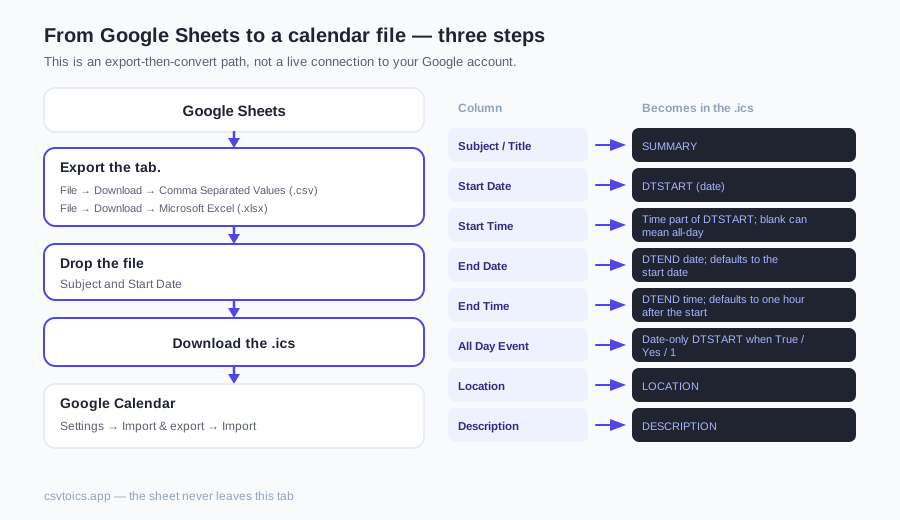
From Google Sheets to a calendar file — three steps
This is an export-then-convert path, not a live connection to your Google account. That is deliberate. A converter that asked you to sign in would have to send the sheet through a server and hold a Google token. This one never does: you download a file, the browser reads it, and you save an .ics. Open the network panel while converting and you will see zero requests carrying your rows.
- Export the tab. In Google Sheets, open the sheet that holds the events and choose File → Download → Comma Separated Values (.csv) or File → Download → Microsoft Excel (.xlsx). CSV exports only the tab you have open. XLSX exports the whole workbook; the converter then reads the first worksheet. Either format is fine — the drop zone accepts both, plus .tsv and legacy .xls.
- Drop the file into the converter at the top of this page. Headers such as Subject and Start Date are mapped automatically. Fix anything the auto-detect misses with the dropdowns, pick the timezone the times were written in, and read the preview cards. A 10 MB / 50,000-row ceiling keeps a malformed workbook from freezing the tab.
- Download the .ics and import it into any calendar app. You do not need a Google account to run this page, you do not install a Chrome extension or Sheets add-on, and the table is never uploaded. The file is assembled locally and saved locally.
If the source is already an Excel workbook rather than a Sheet, skip the Google download and use the Excel to ICS converter — it is the same engine, documented for the .xlsx-first workflow.
Set up your sheet's columns first
Put one header row on row 1 and one event per row below it. Delete title banners, merged cells and filter-view leftovers so the first row is the real header. Only a start date is strictly required; a row with a date but no title becomes (untitled event) instead of being skipped. Everything else is optional and can be mapped by hand if the header name is unusual.
These are the header names the converter recognizes on sight (case-insensitive, extra spaces collapsed). Close variants and the underscore forms work too.
| Column | Required | Also recognized | Becomes in the .ics |
|---|---|---|---|
| Subject / Title | Yes | subject, title, event name, eventname, event title, event, name, summary | SUMMARY |
| Start Date | Yes | start date, startdate, date, start day, start, begin date, dtstart, start_date | DTSTART (date) |
| Start Time | No | start time, starttime, time, begin time, start_time | Time part of DTSTART; blank can mean all-day |
| End Date | No | end date, enddate, finish date, end day, end, dtend, end_date | DTEND date; defaults to the start date |
| End Time | No | end time, endtime, finish time, end_time | DTEND time; defaults to one hour after the start |
| All Day Event | No | all day event, all-day event, all day, all-day, allday, allday event, is all day | Date-only DTSTART when True / Yes / 1 |
| Location | No | location, place, venue, where, address, room | LOCATION |
| Description | No | description, notes, details, note, body, memo, comments, agenda | DESCRIPTION |
A five-row sheet that already matches those headers looks like this. You can type it into a blank Google Sheet, download it, and drop it in above to see the preview.
| Subject | Start Date | Start Time | End Date | End Time | All Day Event | Location | Description |
|---|---|---|---|---|---|---|---|
| Team standup | 2026-09-08 | 09:00 | 2026-09-08 | 09:15 | False | Room 3B | Daily sync |
| Design review | 2026-09-08 | 14:00 | 2026-09-08 | 15:30 | False | Zoom | Sprint 12 mockups |
| Office closed | 2026-09-07 | — | — | — | True | — | Labor Day — building shut |
| Product launch | 2026-09-10 | 10:00 | 2026-09-10 | 12:00 | False | Main hall | Public demo |
| Q3 planning | 2026-09-14 | 13:00 | 2026-09-14 | 16:00 | False | Conference A | Bring last quarter notes |
Two export details that catch people out. First, Google Sheets downloads values, not formulas. =A2+1 becomes the number on screen, which is what a calendar file needs. Wait until volatile formulas (IMPORTRANGE, GOOGLEFINANCE, unfinished QUERY results) have settled; an exported #REF! or #N/A will not parse as a date.
Second, keep the date column in one consistent format. ISO (2026-09-08) is never ambiguous. Numeric dates such as 05/06/2026 are read month-first (May 6) unless the first number is over 12, matching how Google and Outlook write CSV. Written-out months — September 8, 2026 or 8 Sep 2026 — are also safe. Mixed day-first and month-first rows in the same column are how events land on the wrong day; the preview is where you catch that before anything reaches a calendar.
Import the result into Google Calendar
Once you have the .ics, the rest happens inside Google Calendar on the web — the mobile apps cannot import files. Open Settings → Import & export → Import, choose the file, pick the destination calendar and click Import. Google will report how many events it added. There is no bulk undo, and importing the same file twice duplicates every event, so the preview on this page is the last cheap chance to catch a bad date.
The menu clicks, header rules, timezone pitfalls and the choice between Google's own CSV import and the ICS route are documented in full on Import CSV to Google Calendar. This page does not repeat that walkthrough. If the destination is Outlook or Apple Calendar instead, the same .ics imports there too.
What this is — and what it is not
This is a one-shot conversion. You export a snapshot of the sheet, turn that snapshot into a calendar file, and import the file. The two copies then live apart. Edit a cell in Google Sheets and nothing in the calendar moves. Delete an imported event and nothing in the sheet changes. To refresh after the roster or the conference grid changes, export again, convert again and import again — and delete the previous import first if you do not want duplicates.
It is also not a live feed. People sometimes want the other thing: change the Sheet and have Google Calendar update itself within minutes. That takes a Google Apps Script that writes events through the Calendar API, or a third-party Sheets add-on that keeps an OAuth grant to your account. Those tools are a different category — they need permission to read the spreadsheet on an ongoing basis. This site does not do that, and it will not ask you to connect a Google account so that it could. If you need a sync, look for an Apps Script tutorial or an add-on in the Google Workspace Marketplace; do not expect this converter to grow that feature.
What you do get is a private, repeatable snapshot. Teachers publishing a term timetable, organizers dumping a conference grid into attendees' calendars, or anyone who keeps dates in a Sheet and wants them in a calendar once — that is the job. Recurring events are the other honest gap: each row becomes a single event. Duplicate the row once per date, or use the recurring event generator for a repeating .ics.
Check the file before you import
Because an import cannot be undone in bulk, treat the .ics as something you inspect, not something you blindly open. Drop the downloaded file into the ICS viewer to read every event as cards — dates, times, timezone, location — without adding anything to a calendar. If one title is wrong or an end time spilled into the next day, open the same file in the ICS editor, fix the field and save a corrected copy.
That inspect-then-import habit is the whole point of converting on this page instead of pasting rows into a calendar by hand. The sheet stays in Google Sheets. The calendar file is a separate artifact you can keep, re-import next term, or send to someone who never sees the original spreadsheet.
Google Sheets to ICS — FAQ
Can I connect this converter directly to Google Sheets?
No. There is no Google sign-in, no Sheets add-on and no Google API call. The converter is a pure front-end tool: it only reads a file you already downloaded. That is the privacy trade-off — your sheet never leaves your device, and we never ask for access to your Google account. Export the tab first (File → Download), then drop the file in.
Should I export CSV or XLSX from Google Sheets?
Either works. The same drop zone accepts .csv, .tsv, .txt, .xlsx and .xls. File → Download → Comma Separated Values (.csv) is the lightest option and exports only the tab you have open. File → Download → Microsoft Excel (.xlsx) keeps the displayed values and number formats as you see them. Pick whichever you already have; you do not need to convert between the two.
My spreadsheet has several tabs — which one gets converted?
One tab at a time. A CSV download from Google Sheets is the currently open sheet only, which is usually what you want. An .xlsx download contains every tab, but the converter reads the first worksheet and ignores the rest. To convert another tab, open it and download again, or move that tab to position 1 before exporting as Excel.
Can rows become recurring events?
Each row becomes a single event; for repeating events use /recurring-event-generator. A cell cannot express a recurrence rule reliably, so a weekly standup is one row per occurrence unless you generate the repeating .ics there.
How do I pick the right timezone?
Choose the IANA zone the times in your sheet were written in (America/New_York, Europe/London, Asia/Shanghai, and so on). The converter defaults to your browser's zone. Timed events are written with a TZID plus a VTIMEZONE block that carries DST rules, so a 9:00 AM meeting stays 9:00 AM local after import. Pick UTC only if the times are already absolute.
If I update the Sheet, will my calendar update too?
No. This is a one-shot conversion. Changing a cell in Google Sheets does not change events that are already in a calendar. To refresh, export the tab again, convert again and import again — and watch for duplicates, because a second import creates a second copy of every event. Live sheet-to-calendar sync needs Apps Script or a third-party add-on; this site does not do that.
What happens to formula columns?
Google Sheets exports computed values, not the formulas themselves. A cell with =A2+1 becomes the number you see on screen. That is what you want for a calendar file. Just make sure those formulas have finished calculating before you download — a still-loading IMPORTRANGE or a #REF! will be exported as that error text, which the date parser cannot read.
How do I get the finished .ics into Google Calendar?
On the Google Calendar website (not the mobile app), open Settings → Import & export → Import, choose the .ics, pick a destination calendar and click Import. There is no bulk undo, so preview the file here first. Step-by-step clicks, limits and the CSV-vs-ICS trade-offs live on our Import CSV to Google Calendar page.