How to Open an ICS File (and Read It Before You Import)
Opening an ICS file and importing one are not the same job. Opening means reading the events — titles, dates, locations — so you can decide what to do next. Importing means adding those events to a calendar, where undoing the add is tedious on every platform.
On most systems, as of 2026, double-clicking an .ics file does the second thing. Windows hands it to Outlook or the Calendar app. Mac opens Calendar.app and asks which calendar to add to. Phones walk you toward Add All. If you only wanted to see what was in the attachment, you have already committed. The viewer below only reads the file. Nothing is uploaded. Nothing is added to Google, Outlook or Apple Calendar.
Open it here in the browser
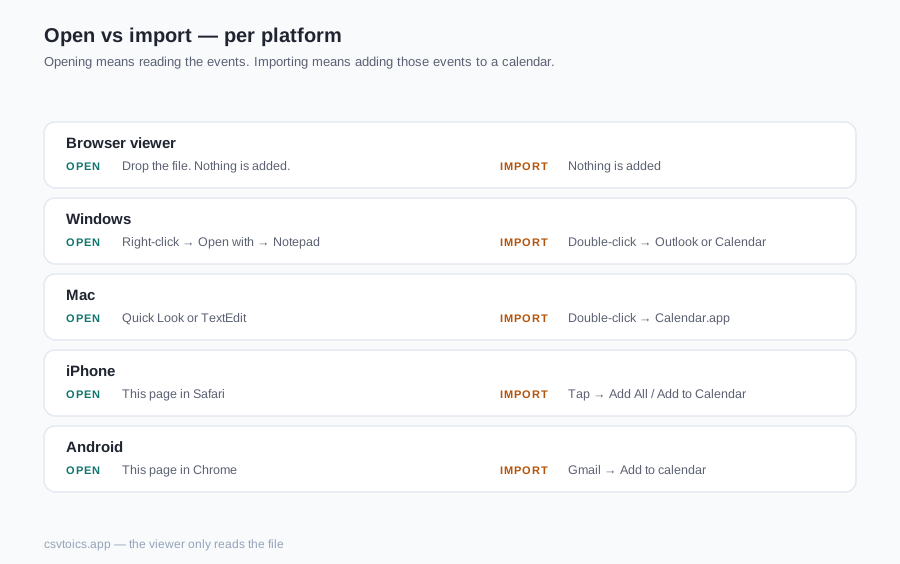
| Platform | Open (read) | Import (add) |
|---|---|---|
| Browser viewer | Drop the file into the viewer on this page. Nothing is added. | Nothing is added to Google, Outlook or Apple Calendar. |
| Windows | Right-click → Open with → Notepad. | Double-click opens Outlook or the Windows Calendar app. |
| Mac | Quick Look (Space) or TextEdit. | Double-click opens Calendar.app. |
| iPhone | This page in Safari. | Tap → Add All / Add to Calendar. |
| Android | This page in Chrome. | Gmail attachment → Add to calendar. |
Drop the .ics onto the viewer above, or click to choose a file. Parsing happens entirely in your browser — the file is never uploaded, so an invitation you do not trust does not leave the device.
What you get back is a readable agenda, not raw property lines. Events are grouped under date headings. Each card shows the summary (the title), the start and end (or an All-day badge), the location and the description. Recurring events appear once, with a Repeats badge; the viewer does not expand a weekly meeting into fifty occurrences. Attendees are not displayed.
Use this when an unexpected invite.icsarrives, when you exported a calendar and want to count what is actually in the file, or when the machine in front of you has no calendar app you want to feed. If the download is a zip — Google Calendar's own export arrives that way — unzip it first and drop the .ics that is inside.
Windows
As of 2026, double-clicking an .ics on Windows typically opens Outlook (if it is installed) or the Windows Calendar app and prompts you to import the events. Confirming that prompt adds them. That is convenient when you already trust the file. It is the wrong first move when you do not.
To read the file without importing it:
- Right-click the file → Open with → Notepad. An
.icsfile is plain text. You will seeBEGIN:VCALENDAR, then one or moreBEGIN:VEVENTblocks. That is enough to confirm "this is a calendar file" and to read a title or two. - Or drop it into the viewer on this page, which turns those lines into an agenda.
Mac
As of 2026, double-clicking an .icson macOS opens Calendar.app, which asks which calendar to add the events to. Picking a calendar and confirming imports them. There is no separate "preview as an agenda" in Calendar.app itself.
To read without adding:
- Select the file in Finder and press Space for Quick Look. On current macOS this usually shows the raw iCalendar text.
- Open the file with TextEdit. If the text looks styled, use Format → Make Plain Text so you are looking at the lines, not a rich-text wrapper.
- Or use the viewer above.
iPhone and iPad
As of 2026, tapping an .icsattachment in Mail, or a file in the Files app, shows a preview whose primary action is Add All / Add to Calendar. There is no built-in "just look at the events as a list." Tapping through imports.
To read only:
- In Files, use Share and open the file in a text editor (or paste the contents into Notes). You will get the raw
BEGIN:VEVENTlines, which is readable for a single meeting and painful for a 200-event export. - Open this page in Safari, then choose the file in the viewer above. That is the practical read-without-adding path on iOS.
Android
As of 2026, a Gmail .icsattachment typically offers Add to calendar, which sends the events into Google Calendar. Some Files-app previews show the text; others bounce you toward the calendar app. Treat "open" on the phone as an add unless you have chosen a text viewer on purpose.
Google Calendar's file import — Settings → Import & export → Import — is a web-only path as of 2026. The Android app does not give you a local "pick this .icsand import it" screen in the same way. Opening an email attachment is still an add, not that web import.
To read first, open this page in Chrome (or any browser) and choose the file in the viewer. Nothing is uploaded; nothing is added.
Reading the raw text
If you open the file in Notepad, TextEdit or any other editor, four lines tell you most of what you need:
BEGIN:VEVENT— one event starts here. A file can hold one event or thousands.SUMMARY— the title you would see on a calendar square.DTSTART— when it begins. A value with a trailingZis UTC; aTZID=parameter is a named local zone;VALUE=DATEis all-day.LOCATIONandDESCRIPTION— where it happens and any notes the organizer attached.
Then END:VEVENT closes the event. The rest of the format — UID, RRULE, VALARM, METHOD — is documented on what is an ICS file. You do not need it to decide "is this one meeting or a whole calendar dump?"
When it won't open
A few files refuse to open, or open as garbage:
- Google's export is a zip, with one
.icsper calendar inside. Unzip first. - The extension lies: a file renamed to
.icsthat is actually an .eml, a CSV or a PDF has nothing for a calendar parser to find. - A truncated download can lose the closing
END:VCALENDARline. - Invitation files (
METHOD:REQUEST) sometimes fail a "import this calendar" path that wanted a published schedule.
If the viewer cannot parse the file, or a calendar app refuses it, use the ICS validator to lint structure, dates and UIDs, and read ICS file not importing for the causes that actually stop Google, Outlook and Apple Calendar.
Turn it into a spreadsheet instead
The viewer is for reading. If you want the events as data — to sort, count, bulk-edit or archive — convert the same file with the ICS to CSV converter (one row per event, opens in Excel or Sheets) or the ICS to Excel converter (a real .xlsx workbook). Both run in the browser. You can convert back to ICS later if the events need to live in a calendar again.
How to open an ICS file — frequently asked questions
Does opening an ICS file import it into my calendar?
On most systems, as of 2026, yes — that is the trap. Double-clicking an .ics on Windows, Mac, iPhone or Android usually hands the file to the default calendar app and adds the events. Opening it in the viewer on this page, or in a text editor such as Notepad or TextEdit, only reads the file. Nothing is added to Google, Outlook or Apple Calendar.
Can I open an ICS file without Outlook?
Yes. You do not need Outlook, or any calendar app. Drop the file into the viewer on this page — it runs in the browser. As of 2026, on Windows you can also right-click → Open with → Notepad, because an .ics file is plain text. The same file opens in TextEdit on a Mac and in any code editor.
What is the difference between .ics and .ical?
They are the same format. iCalendar is the official name in RFC 5545. .ics is the usual file extension. .ical is a less common extension for the same text; people also say "iCal file," leftover from Apple's old calendar app. If the file starts with BEGIN:VCALENDAR, it is this format, whatever the name on the download.
How do I open an ICS file on a phone?
As of 2026, on iPhone and iPad, tapping an .ics in Mail or Files previews it and offers Add All — that imports. On Android, a Gmail attachment typically offers Add to calendar. To read without adding, open this page in the phone browser and choose the file in the viewer. Sharing the file into a text editor also shows the raw lines.
What about an ICS attachment in a meeting invitation?
Mail apps treat invite.ics as an invitation: you see Accept / Decline, and accepting imports the event. That is by design for a meeting you meant to take. If you do not recognise the sender, or the file might hold more than one event, open the attachment in the viewer first. Importing calendar spam is tedious to reverse on every platform.
How do I edit an ICS file?
Use the ICS editor on this site (/ics-editor). It opens the events as cards — title, dates, times, location, description — and writes a new .ics you can download. That edits the file, not the calendar already on your device. You can also edit the raw text in any editor, but a missed escape or a broken BEGIN/END pair will make the file fail to import.
Can I print an ICS file?
Yes. Use the ICS to PDF tool on this site (/ics-to-pdf) to lay the events out as an agenda or a month grid, then use your browser's Print → Save as PDF. That does not import anything into a calendar. A text editor will print the raw property lines, which is rarely what you want.