CSV Calendar Template — Free Spreadsheet Templates for Calendar Import
A ready-to-fill csv calendar template for Google Calendar, Outlook and Apple Calendar. Download a spreadsheet with the right column names, drop in your events, convert to ICS and import — no guessing whether the date column should be “Start” or “Start Date.” The download is generated in your browser. Nothing is uploaded.
Timed events with a location. Enough for most meeting lists.
Preview — 3 sample events
| Subject | Start Date | Start Time | End Date | End Time | Location |
|---|---|---|---|---|---|
| Weekly team standup | 09/08/2026 | 09:00 AM | 09/08/2026 | 09:15 AM | Zoom |
| Annual physical | 09/11/2026 | 10:30 AM | 09/11/2026 | 11:15 AM | Riverside Family Clinic, 12 Main St |
| Design review | 09/15/2026 | 02:00 PM | 09/15/2026 | 03:30 PM | Conference Room A |
Dates are MM/DD/YYYY and times are 12-hour (HH:MM AM/PM) — the same layout Google Calendar and Outlook use, and what the converter on this site expects.
Which template to use
- Basic — timed meetings with a location. Team standups, doctor appointments, client calls. Six columns, no flags. Pick this if every row has a start time.
- Detailed — the Basic set plus Description, All Day (TRUE/FALSE) and Reminder Minutes. Use it when the same sheet mixes timed meetings with all-day blocks, or when you want notes to land in the event body. Reminder Minutes stays in the spreadsheet; the converter does not write calendar alarms from it.
- All-Day Events — Subject, Start Date, End Date, Description. No time columns at all. Holidays, conferences spanning several days, project deadlines. For a three-day conference, put the first day in Start Date and the last inclusive day in End Date.
How to use the template
Download a template above. The CSV includes a few sample rows so you can see the format — replace them, do not append under them unless you meant to keep the samples.
Open the file in Excel or Google Sheets and fill in your events. Keep the header row. Dates as MM/DD/YYYY, times as HH:MM AM/PM. Leave time cells blank on all-day rows.
Convert at csvtoics.app. Drop the CSV, confirm the column mapping, preview the first events and download the .ics. The file never leaves your browser.
Import the .ics into Google Calendar (Settings → Import & export), Outlook or Apple Calendar. Step-by-step clicks live on the Google Calendar, Outlook and Apple Calendar guides.
Column format reference
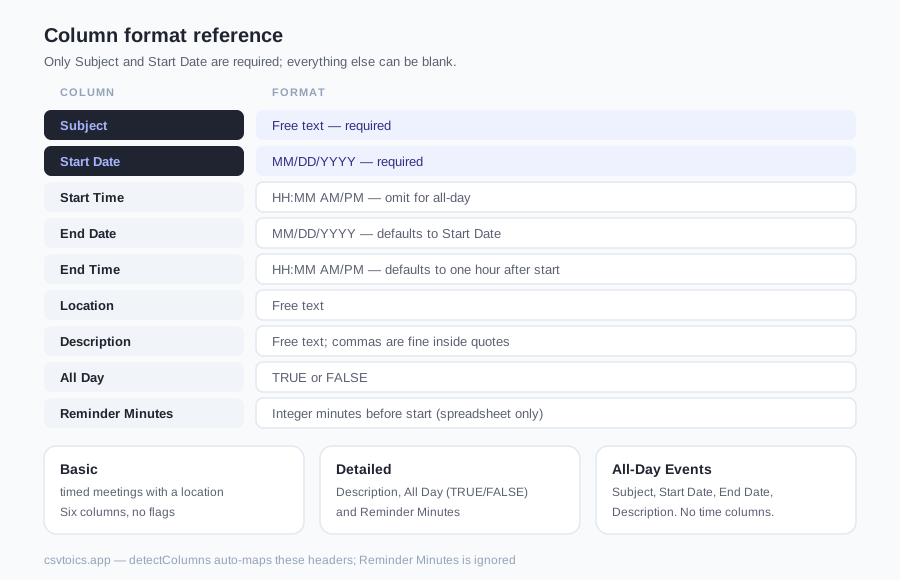
Headers are case-insensitive. Only Subject and Start Date are required; everything else can be blank. Cells that contain commas are quoted automatically in the download. The converter's detectColumns auto-maps Subject, Start Date, Start Time, End Date, End Time, Location, Description and All Day; Reminder Minutes is ignored.
| Column | Format | Example |
|---|---|---|
| Subject | Free text — required | Weekly team standup |
| Start Date | MM/DD/YYYY — required | 09/08/2026 |
| Start Time | HH:MM AM/PM — omit for all-day | 09:00 AM |
| End Date | MM/DD/YYYY — defaults to Start Date | 09/08/2026 |
| End Time | HH:MM AM/PM — defaults to one hour after start | 09:15 AM |
| Location | Free text | Zoom |
| Description | Free text; commas are fine inside quotes | Sprint 24 daily sync |
| All Day | TRUE or FALSE | FALSE |
| Reminder Minutes | Integer minutes before start (spreadsheet only) | 15 |
How to use a CSV calendar template
Download Basic, Detailed or All-Day from this page, fill Subject and Start Date, then drop the sheet on the CSV to ICS converter. The same headers work in Excel via Excel to ICS. After you have an .ics, import it with the Google Calendar guide. Nothing in the template is uploaded until you convert it locally.
CSV calendar template — frequently asked questions
What columns does the CSV need for calendar import?
Only two are strictly required: Subject (the event title) and Start Date. Start Time, End Date, End Time, Location, Description and All Day are optional. The Basic template on this page covers the usual timed-event set; the Detailed template adds Description, All Day (TRUE/FALSE) and Reminder Minutes. Column order does not matter. The converter on this site also recognizes aliases such as Title, Date, Time, Where and Notes.
Can I add recurring events to the template?
Not as a recurrence rule. Each spreadsheet row becomes one event. For a weekly standup, add one row per occurrence (or duplicate the first row and change the dates). The converter does not write RRULE, and neither Google Calendar's CSV import nor Outlook's CSV import will turn a 'repeats weekly' cell into a series. If you need a true repeating event after conversion, add an RRULE line to the .ics — the syntax is in our how-to-create-an-ICS-file guide.
What date format should I use?
MM/DD/YYYY — month first, the same convention Google Calendar and Outlook use in their own CSV exports. Example: 09/08/2026. Times are 12-hour with AM/PM, such as 09:00 AM or 02:00 PM. A 24-hour 14:00 is not what these templates use. The converter also reads ISO dates (2026-09-08) if you already have them, but the files you download here are month-first so they open cleanly in Excel and Google Sheets in US locales.
How do I import the CSV into Google Calendar?
Two routes. Direct: on calendar.google.com (desktop only), gear → Settings → Import & export → Import, pick the CSV and a destination calendar. The file must use English headers and Subject + Start Date are mandatory; there is no undo. Safer: drop the filled CSV into the converter on this site, preview the events, download an .ics, then import that .ics the same way. ICS carries timezone and all-day handling that CSV import does not.
Does the template work with Excel and Google Sheets?
Yes. Download the CSV, open it in Excel (File → Open) or Google Sheets (File → Import), replace the sample rows with your events, and save or download as CSV again. Keep the header row exactly as it is. Then drop the file on csvtoics.app — or, from Sheets, File → Download → Comma Separated Values (.csv) / Microsoft Excel (.xlsx) and convert from there. Do not rearrange or rename the header cells if you want auto-detection to fire.
What happens to columns the converter doesn't recognize?
They are ignored. The converter maps Subject, Start Date, Start Time, End Date, End Time, All Day, Location and Description (plus common aliases) and leaves everything else behind. Reminder Minutes in the Detailed template stays in the spreadsheet — it does not become a VALARM in the .ics, because the converter does not write reminder alarms. Extra columns never break the conversion; they simply do not appear in the calendar file.